BlueStacks Root in 2026: What Still Works for GameGuardian (Tested)
Tested 7 November 2026 on BlueStacks 5.22 (Android 9, 64-bit), LDPlayer 9.5 and GameGuardian 101.4.
Short answer: the classic BlueStacks root method no longer works on BlueStacks 5.22. You can still switch on the hidden root settings, but GameGuardian reports “Unable to obtain root access”. GameGuardian itself now warns against BlueStacks. If you want GameGuardian on a PC, use LDPlayer, which has a root switch in its settings.
What we tried on BlueStacks
1. The bluestacks.conf method
Most guides still tell you to edit BlueStacks’ settings file. We did exactly that:
- Close BlueStacks completely.
- Open
C:\ProgramData\BlueStacks_nxt\bluestacks.confin Notepad. Make a backup copy first. - Change
bst.feature.rooting="0"to"1". - Change
bst.instance.Pie64.enable_root_access="0"to"1"(your instance name may differ: look for the line ending inenable_root_access). - Save and restart BlueStacks.
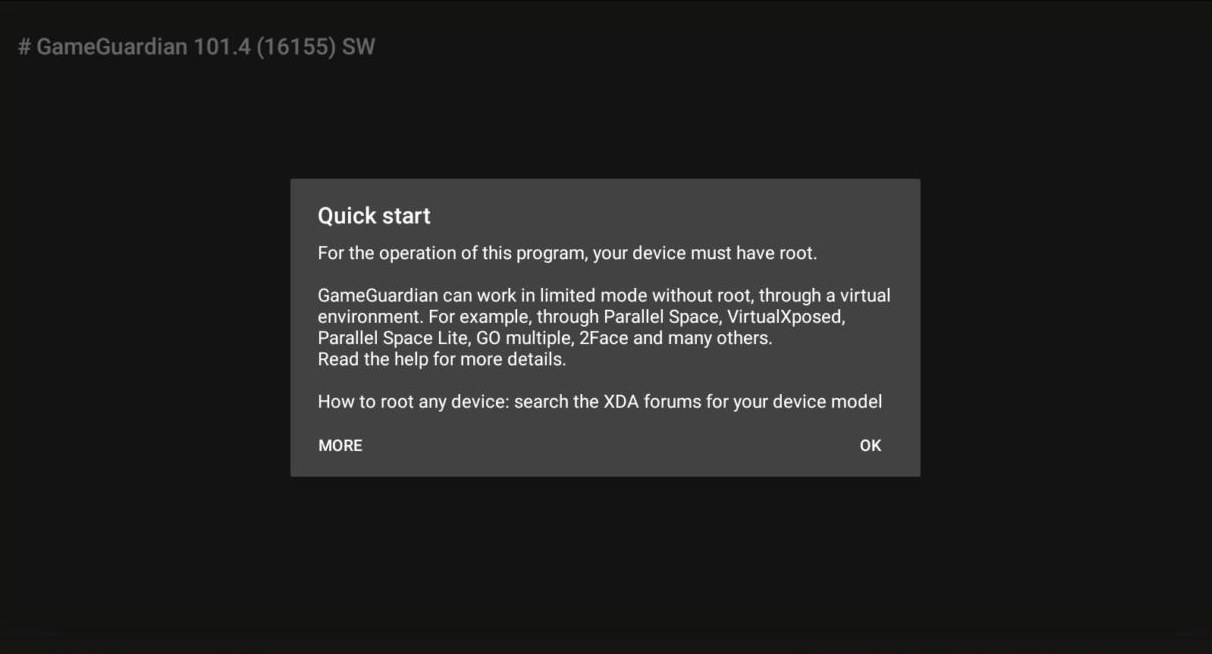
Result: GameGuardian 101.4 still showed “Failed to load daemon: Unable to obtain root access”. On current BlueStacks builds, these settings no longer give you a working root.
2. GameGuardian’s own warning
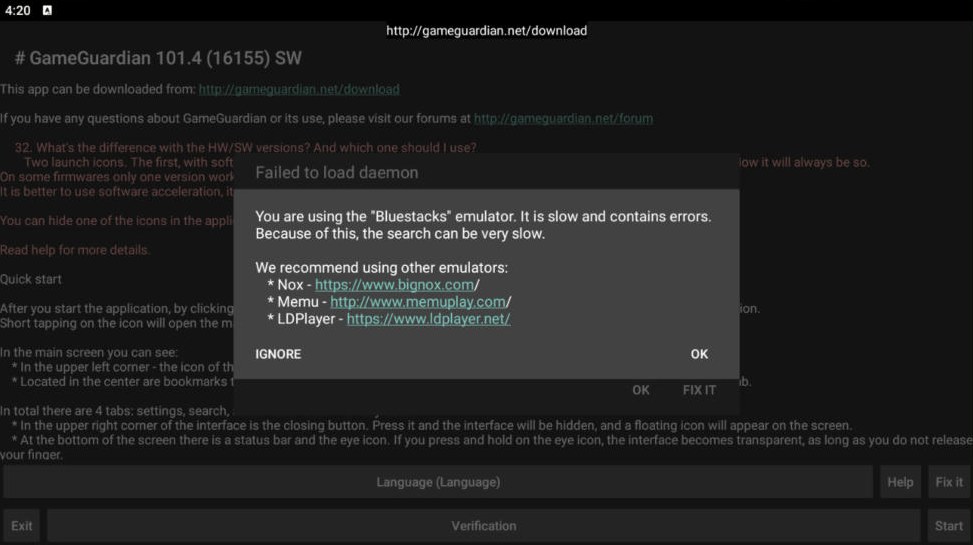
On BlueStacks, GameGuardian shows its own message: BlueStacks is slow and contains errors, so searches can be very slow. It recommends Nox, MEmu or LDPlayer instead.
3. No-root mode with a virtual space
We installed the GameGuardian-optimized Parallel Space from gameguardian.net’s virtual spaces section (the Android 9+ build). It froze on its start screen in BlueStacks. That build dates from 2021.
What about Kitsune Mask and BlueStacks “tweaker” tools?
Unofficial patching tools can still root some BlueStacks versions. We don’t recommend them: they modify the emulator with third-party files, they break with BlueStacks updates, and there are simpler options.
What works: LDPlayer with root switched on
- Install LDPlayer 9 from ldplayer.net. Decline any bundled offers.
- Open the menu (☰) at the top right and choose Settings.
- Go to Others and switch on Root permission.
- Click Save settings and let LDPlayer restart.
- Open Chrome inside LDPlayer and download GameGuardian from gameguardian.net. Pick GameGuardian-Emulator-101.4.apk. Chrome warns that the file “might be harmful”: that warning appears for every APK file.
- Install and open GameGuardian. A Superuser Request appears: choose Remember choice forever and tap Allow. Be quick: the prompt times out after a few seconds and counts as “denied”. If that happens, close GameGuardian’s window and the prompt comes back.
- GameGuardian then asks to display over other apps. Allow it, so the floating GG icon can appear.
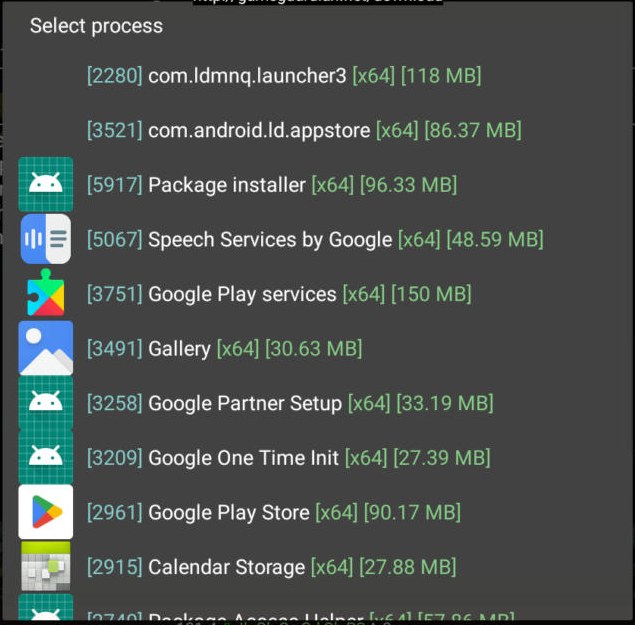
- Tap the floating icon. If you see the Select process list, root works.
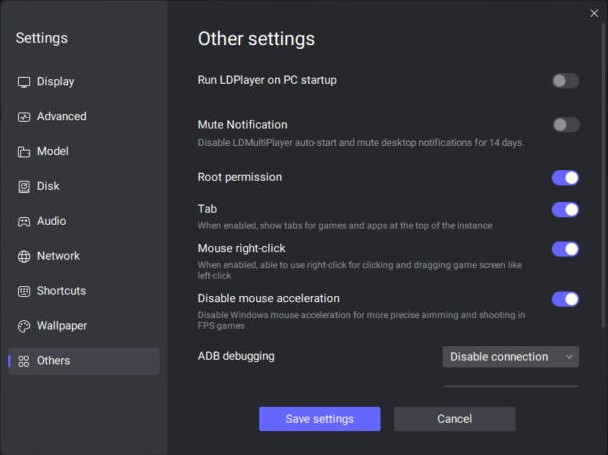
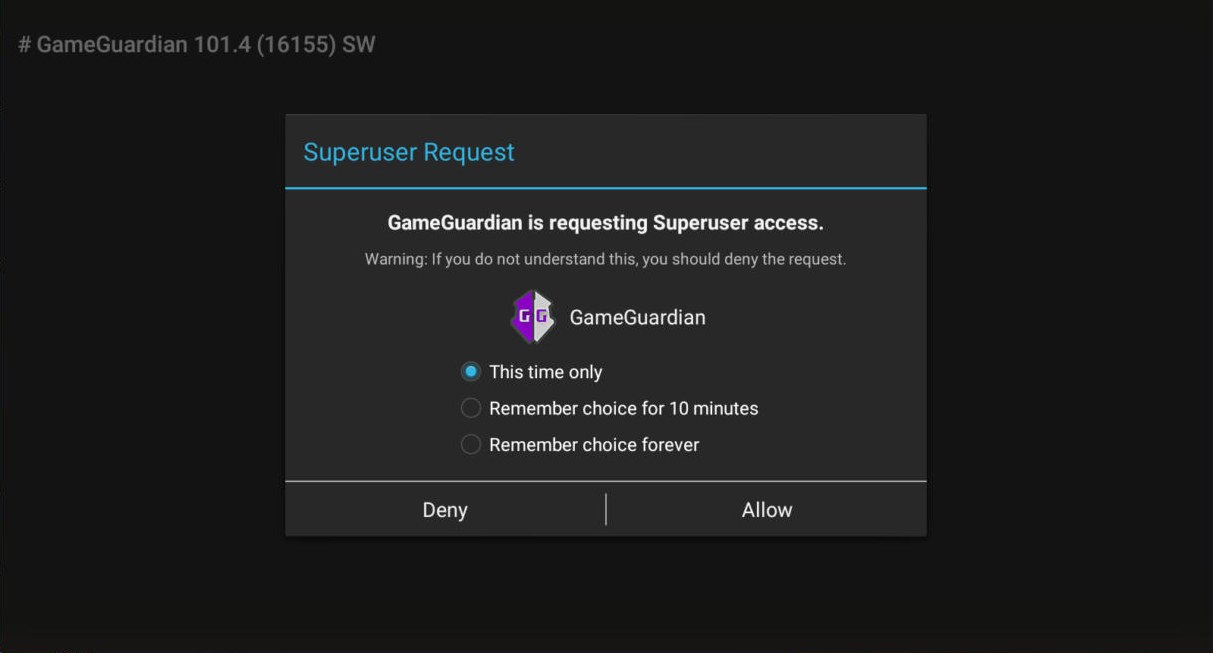
Result: GameGuardian 101.4 got root on the first try and listed every running process. That’s the sign that it can read game memory.
Tips
- gameguardian.net allows guests 2 downloads a day, and registered (free) accounts 4. Download the right APK the first time.
- Use emulators only for offline and single-player games. Online games often detect emulators and root.
- Next step: our GameGuardian tutorial for beginners.


